
Guest requests
Request alerts
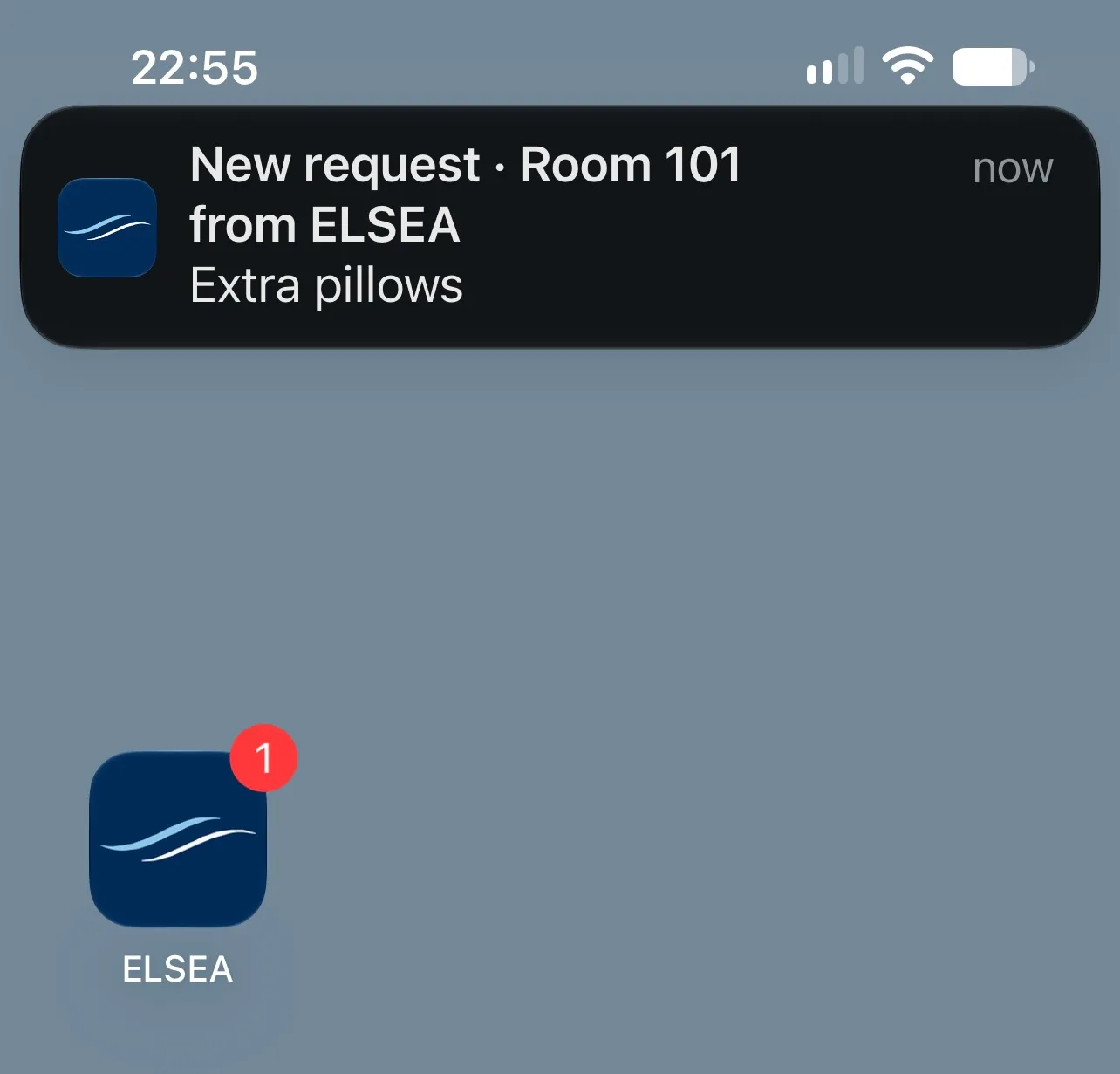
A banner on this phone or computer when a new request arrives. Email alerts still go to the inboxes you publish; this is per device.
iPhone
Safari will not allow alerts until ELSEA is on the Home Screen. Use Safari, not Chrome, for this step.
-
Open Requests in Safari
Sign in at staff.elsea.biz, then open Requests. You should see Get alerts for new guest requests.
-
Share, then Add to Home Screen
Tap Share, then Add to Home Screen. Open the new ELSEA icon, not the Safari tab.
-
Turn on alerts
In the installed app, open Requests and tap Turn on alerts. Allow notifications when iPhone asks.
Android and computer
Chrome on Android, and Chrome or Edge on a computer, can turn alerts on in a normal tab. No install step.
-
Open Requests
Sign in and open Requests on the phone or computer that should beep.
-
Turn on alerts
Tap Turn on alerts, then Allow when the browser asks. Alerts on appears when it worked.
Test and turn off
-
Test alert
With Alerts on, open that chip, then Test alert. You should see "Test alert" and "Request alerts are working on this device."
-
Turn off
Same chip, then Turn off. That device stops getting banners; email inboxes are unchanged.